Showing posts with label tips. Show all posts

Saturday, February 14, 2015

Cricket World Cup: How to Get live scores and fixtures right on the home screen!!!

Here is how you can get live scores and fixtures right on your Android home screen. You will have to follow few steps to get it done, yeah few simple steps. 


1. Download and install "Google Now" launcher from the link

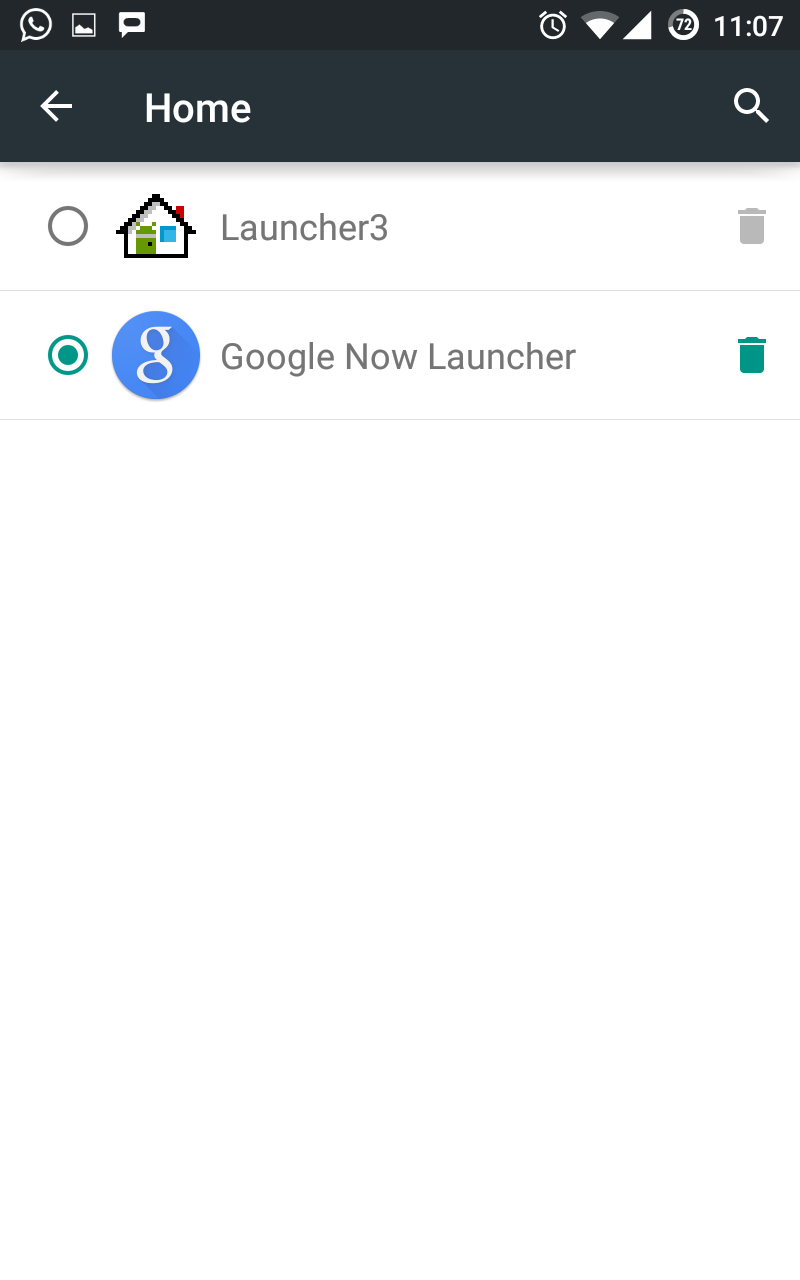
2. After Installation, open it and enable the launcher OR
     Open settings->Home-->Select Google Now Launcher


3. In home screen go to the leftmost screen. Yes, this screen will be exclusively used by Google Now.

4. Open settings in Google Now by clicking on menu button in Google search bar


5. Click on customize--> sports


6. Add your favorite teams. Example: If you want to add India then search for "India Cricket Team". Likewise add all other teams.  I have added all 8 major teams


7. Go back to Google Now screen and refresh it by pulling down. 
And this is what you will see on your Google Now cards


Continue Reading

Tuesday, November 18, 2014

How to disable blue double check in Whatsapp!!!

Here is how you can disable the new "blue double check" feature in Whatsapp!!!

1. Open http://www.whatsapp.com/android/ in your mobile and download latest version of Whatsapp


2. Go to phone settings->security and check "Unknown sources"


3. Click on the .APK file that you downloaded in step 1 and install it


4. Once installed, Open Whatsapp->Settings->Account->Privacy  and Uncheck "Read receipts"

Continue Reading

Monday, November 17, 2014

How to transfer messages and contacts from Android to computer with Vibosoft Android Mobile Manager


Although iPhone keeps updating to draw more attention of mobile users, there still remain considerable Android phone followers. There is no doubt that we need use our cell phones to send/receive messages and make telephone calls all the time. For many Android users, they maybe save tons of messages and large numbers of contacts because of special needs. However, during the use, some operations (such as failed to upgrade system) may make the phone's internal data be cleared. If the contacts and messages are lost, it might cause unpredictable huge losses. To keep such annoying thing from occurring, it is recommended to regularly backup our contacts and text messages. As for how to transfer important data like contacts and SMS to computer for backup, you can refer to the following method.

Some people have ever attempt to transfer the messages or contacts to computer by themselves but unfortunately they failed. In fact, the phone data cannot be moved to computer directly by just connecting device and pc. We need rely on professional transfer tool for Android devices to complete this data transmission. As we know that contacts and messages are stored in the internal memory. Vibosoft Android Mobile Manager is such a tool that it can neglect the limitations to help backup your SMS and contacts at the first time. This third-party program has strong compatibility, powerful functions and fast operation speed. Vibosoft studio has launched Windows and Mac versions for different users. So users can transfer their data from their Android phones to Windows pc and Mac as well.

Highlights of Vibosoft Android Mobile Manager:
  • Transfer messages to pc and freely edit and send text messages from computer directly.
  • Export and manage your contact information.
  • Install and uninstall applications
  • Backup your precious photos, music or movies.
  • High compatibility: support all Android branches like Samsung, HTC, LG, Sony, Motorola, etc.
To achieve perfect transfer process, here are some preparations you need to do:

Download the trial version and finish the installation and then run the program on your pc. Make sure your Android phone has connected to pc successfully and enable the USB debugging. When your phone gets detected, it will install the USB driver automatically. As follows:


Next this program will analyze your device content. You can get a structure of your data details in a while. Select the messages or contacts that you need to export and click Backup button to export.


Now you can view, edit the SMS and contact on your computer. If you are still confused, learn more about the steps to how to transfer Android contact to computer and the guide on how to backup messages from Android to computer.

With this kindly Vibosoft Android Mobile Manager in hand, there is no need to worry about the contact and SMS loss from your Android devices. By transferring them to your computer to release more space, you can keep as many contacts and messages as you like. 
Continue Reading

Thursday, October 9, 2014

How to turn off notification from a specific group in Whatsapp

Just because you are getting too many notifications from a group, you don't have to "delete and exit group" in Whatsapp . You can mute or turn off the notification for a specific group so that you don't get disturbed because of it. Messages will be received by your mobile but it will not notify you about the same. You can always open the group and go through the messages whenever you feel like reading it.

So here is how you can turn off the notification in Whatsapp

1. Go to Whatsapp and open the group for which you want to turn off the notification


2. Click on three verticals dots at right top of the screen. Which is next to "attachment" icon.


3. Click on mute. You can mute it for 8 hours, 1 day or 1 week. 
   If you want to turn off the notification completely then uncheck "show notifications".


Mute will not alert you during new messages  but you can see those messages in the notification tab. But if you uncheck "show notifications" then you won't even see those messages in notification tab, you will have to open the group to see those new messages.
Continue Reading

Thursday, October 2, 2014

How to turn off push notification from a particular app in Android

There are times when we get irritated because of push notification from a particular app. These days apps send push notification about some offer, update , new version and what not. Some of the notification are useful but most of them just irritate us and we don't even bother to open it. There are cases where user uninstalls the app because couldn't tolerate those frequently disturbing push notifications. So let's see how we can disable push notification from a particular Android app.

1. Open settings and selects "apps" from the list


2. Select app for which push notification should be disabled


3. Un-check "show notifications" option


Note: These steps are verified on Android 4.4 vanilla version. Steps might vary a bit on other flavors.

Continue Reading

Saturday, September 6, 2014

How to edit /etc/hosts and block websites and ads in Android phone

Hosts Editor is a beautiful and powerful Android application which allows you to edit /etc/hosts file in Android. Host Editor requires root privileges, so it works only on rooted Android phones. Unwanted sites and ads can be blocked by editing /etc/hosts file. If you have less or no knowledge about /etc/hosts file then don't worry. Probably that's not required to block websites or ads in Android phone.But, if you would like to know what exactly you are doing then read about "/etc/hosts" and "localhost 127.0.0.1".

Below is how you can do it.

1. Root your Android phone. There are many ways to do it and process differs from phone to phone.Refer some online tutorial to do it. Intention of this post is to block sites and ads, so I am not talking rooting the phone.

2. Install "Hosts Editor" from playstore using the link - http://goo.gl/8aHsB1

3. Open Hosts Editor application in Android phone.

4. Click on '+' mark to add an entry
 

5. In IP Adress field add "127.0.0.1" and in Hostname field add the name of the website which you want to block. For ex - "www.facebook.com", "www.gmail.com"


6. Click on "Add Hostname" option and you will see this entry in /etc/hosts.

7. Restart your phone.

8. Open your browser and enter the name of the website you just blocked, BOOM!!! "webpage is not available"!!!.


Note: You can unblock the website by removing the entry from /etc/hosts files.
Continue Reading

Saturday, August 9, 2014

How to get album cover for all songs in Android mobile?

Sometimes songs are downloaded from websites, songs will not contain any album cover or picture. While you open your music player these songs will not be associated with any picture and some default icon will be present. Check out the below screenshot where couple of songs doesn't contain any album cover and some default icon is present instead.


Fix it in 3 steps
  1. Download and install Cover Art Grabber from playstore
  2. Open cover art grabber application 
  3. Click "fetch missing cover" and it fetches all album covers in background

Next time when you open your music player you will find album covers for all the songs. In case, if some covers are missing. You can search for that particular song through this application. Every song you download will have some metadata associated with it. Metadata contains information like song name, album name , artist name etc. If this information is not correct then you will not be able to fetch proper album cover for those songs. To fix those metadata , you can use "iTag" option in this application. Currently this option doesn't seem to work in this application. I have reported this to the developer and hope he fixes it ASAP. Until then you can use an alternate application called  "iTag - music tag editor".  iTag app can also be used to search and pick cover pictures. Both the applications are free and contains ads in it.
Continue Reading

Sunday, June 15, 2014

How to get FIFA 14 updates in Google Now?

I think everyone knows what Google Now is. If you don't, then let me try to explain it to you in brief. Google Now is an intelligent personal assistant developed by Google. It displays useful information to the users in the form of cards. Examples of some useful information which can be used on day to day basis are weather update, ETA to office, directions on Google map to reach back to your home when you are away, news of your interest from around the world etc. Google now is present in most of the phones nowadays. You just have to enable it. But with "Google now launcher" you can the access the same in home screen itself.

Along with the daily updates you can also get FIFA 14 updates in Google now. All updates about FIFA will be displayed in one card. This card provides updates such match schedule, results, line ups, match time line etc. Check out the images below to see how it looks. These information are directly pulled from FIFA.com and displayed on card. Some obvious advantage of having this is, you don't have install any app to get FIFA updates nor you have to navigate to any websites to check the match results. Everything will be displayed in one of your home screen. Updates are beautifully presented through cards and I bet you love it. If you have Google now launcher then Google would have asked if you are interested in FIFA. If you had disabled it back then and want to enable it now or if in case Google has't asked you about it then follow below steps to enable it.


    1. Open Google Now. For Google now launcher users, go to leftmost home screen.


  2. Click on Magic wand button at the bottom of the screen


 3.  Select  sports


 4.  Click on "Hide scores of FIFA" and enable it. Also add your favorite team(optional)


5. Enjoy FIFA updates on Google Now


Continue Reading

Saturday, June 7, 2014

How to get camera flashlight notification for calls and messages

LED notification light is one of the most utilized feature in Android. But there are some cool phones which do not have this LED notification light. Try using camera flashlight to notify when you get calls and messages. You can set this up by using an application called Flash Light Alerts. Camera flash light blinks when you receive a message or call. Blinking duration can be changed using Flash Light Alert's settings. Because of obvious reasons you won't be able to get different colors for different types of alerts. This app doesn't require the phone to be root'ed. App supports different messengers like Facebook, Whatsapp, Viber, BBM etc. This app can be enabled/disabled depending on the mode such as enable when in vibration mode, silent mode, normal mode etc. Automatically disable when battery is low. You can also set the sleeping time during which it will be disabled. Flash light alerts is a small app of size 1.6MB. 

Below is how you can set it up

  1. Download and install Flash light Alerts from playstore
  2. Open Flash Light Alerts
  3. Set the blinking duration
  4. Test it using "start test" option
  5. Enable it
Continue Reading

Friday, June 6, 2014

How to share installed application as APK files with others

In my last post how to extract APK files  I wrote about extracting APK files of installed applications on Android phones. MyAppSharer is also more or less a similar application. Usually when you try to share the installed application with some one else by default just the Google play link of the same will be shared and not the apk file. Inorder to install the shared app they will have to download the app from playstore. Using MyAppSharer one can directly share the APK files of the installed application with others. Basically two steps process of extracting APK and sharing is merged into one. Apps can be shared as APK files, Google play links or as barcode. In order to share apps as QR code you will have to install barcode scanner from playstore. Apps can also be uploaded to Dropbox, if Dropbox app is installed in your phone. As of today MyAppSharer's rating is 4.3 out of 5, rated by ~45,000 users. It's a small application yet powerful. 

Follow below steps to share installed applications as APK files 

  1. Install MyAppSharer from Google playstore
  2. Open MyAppSharer
  3. Select the radio button saying "apk"
  4. Select the apps which you would like to share. You can choose more than one app
  5. Click on share button
  6. Select the app through which you want to share
       
Continue Reading

Sunday, June 1, 2014

How to get/extract APK file of installed application on Android

Follow below steps to extract the .APK file of installed application on Andoid phone. By doing this you can backup installed application and also you can share these APK files with friends so that they don't have to download the application again from playstore.

  1. Download APK extractor 
  2. Install APK extractor on your phone (no root required)
  3. Open APK extractor app
  4. Select the app for which you want to extract the APK
  5. Click share and save the APK file
       

APK extractor is just 550k in size. I tried it for couple of applications and it worked fine for me. By default extracted apk will be stored in internals storage/ExtractedApks directory. Use any file manager to open this directory. Path to store the Apk file is configurable. Give it a try and let me know how it is. 
Continue Reading

Sunday, May 25, 2014

Tip 10: How to hide Photos,SMS, Facebook messages and Videos in Android phones

We all have those photos, videos and message which we don't want to show it anyone. But sometimes when we give our phone to our friends purposefully or accidentally they see it. We think phone's PIN or pattern lock will protect them. But that will protect only to certain extent. When some one wants to look at the phone they will definitely ask to unlock it. So, using PIN or pattern lock to phone is not a fool proof method to protect confidential data. Then how do we keep those confidential data to ourself? Very simple it is, in Android we get apps for everything. One such application which can hide photos,message and videos is Vault. It's a free application with few premium options available within the app. Configure Vault with password and import all confidential data to this app. Once imported then data won't be seen any where else. This app acts like a gallery and you can browse through all imported pics,messages and videos. It has option to encrypt the data and store it on cloud as well. You can also use Vault to chat with Facebook friends privately and these messages will be encrypted and they won't even appear in Facebook chat history. Add phone numbers to Vault and all messages and phone logs to or from that number will be hidden. There two more new features available in this app i.e app lock and Vaulto gallery. Apps can be locked using app lock feature, so that you don't need to download a separate app for the same. Valuto gallery is an anonymous photo sharing community. Every shared photo will be seen only for 10 seconds and then it gets deleted automatically. Hidden photos and videos can be restored back to the gallery if you don't wish to hide it anymore. Overall it's a great application to hide data from others. Give it a try and let me know how it works. Click here to download the app for Android.


Vault
Vault Features


Continue Reading

Sunday, May 18, 2014

Tip 9: How to recover deleted photos and files on root'ed Android phones

There are many application in play store to recover the deleted photos and files but only few among them does the real job. One such efficient application is Disk Digger. This app works only on root'ed Android phones.This powerful application will retrieve all deleted files, provided it's not overwritten by other data on the disk. Files can be recovered from both internal and external storage. First time when you open this app it will request for root privilege. After granting the required permissions apply filters such as JPEG, PNG, XML so that disk digger knows what type of file you are looking for. Scanning will take sometime and of course it depends on the size of the storage. Once scanned, select the files you want to restore and click on "save locally" option. Searching the required files from the list of scanned ones will be a tedious job. I wanted to search for couple of files but disk digger retrieved 4K files, it took very long time for me to search those couple of  files out of  those 4K files. This app can be made more efficient by adding one more filter for not listing out the files which are still present (i. e files which are not deleted). If you want to retrieve any deleted files or photos then this is the app for you. Only con of this application is, it works only on root'ed phones. 


Recover deleted files

Users rating - 3.7
Size - 635k
Downloads -  1,000,000 - 5,000,000

Get it on Google Play
Continue Reading

Wednesday, May 14, 2014

Tip 8: How to check if Android device has root access

Rooting an Android device is definitely a big deal but checking if device has root access should be a simple job, isn't it? Yes, it's an easy task to check if device has root access or not. Install Root checker from playstore( link present at the bottom of this post). This application will test if the device has root access in a simple, quick and reliable method. The su binary is the most common binary used on Android devices to grant and manage root access. Root Checker will check and verify that the su binary is located in a standard location on the device. Root Checker will also confirm the proper permissions and flags on the su binary in addition to testing that access is granted by the su binary.

Once installed follow the below steps

1) Open Root checker application


Root checker

2) Click "verify root" option

Root checker

3) Click "Remember choice forever" and wait for few seconds

That's it, done :). 
If you would like to root your device then please refer to xda forums.

Get it on Google Play
Continue Reading

Sunday, May 11, 2014

Tip 7: How to clean junk and unused files on Android mobile?

Every time you uninstall an app, there are some junk files left in your phone which are related to the uninstalled app and which are no longer needed. This is because of the installation of poorly coded apps. If you don't believe me, then you got to check all folders present in your internal and external storage. Yes, we cannot identity which app contains this flaw and which doesn't but we can always ensure that these junk and unused files are deleted when apps are uninstalled. We can remove these files manually but why do it manually when we have a better way of doing it.

Clean Master is a beautiful application for Android which can do the job for us. It gets rid of all junk files and keeps our phone clean. It also frees up unused memory and helps in speeding up the phone. Clean master has built it's own database which tells what files are needed and what not. Using the same Clean master cleans up the phone. It tells how much of space is occupied in our phone and gives the list of all unwanted files. You can get rid of all the files in the list or you can select the files which has to be removed. Everyone must be aware of moving the apps to SD card. Not all apps can be moved but most them can be, in case if you don't do it then we have Clean master to prompt us about the same. This is one of the highest downloaded app and it's used by lots of users across the world. With 4.7 rating by 9,149,473 users (as of today) this stands at the top of  cleaning apps chart.


Get it on Google Play

Users rating - 4.7
Size - varies with device
Downloads -  100,000,000 - 500,000,000
Continue Reading

Sunday, May 4, 2014

Tip 6: How to get mobile notification on computer

Pushbullet, a powerful app which displays all mobile notifications right on computer screen. Install this application on device and install Pushbullet add-on to browser and get the notification right on your computer screen. Notifications pops up as a small dialog box at left bottom of the computer screen. All notifications what you see on your notification tab in mobile will be displayed on the computer. Along with that it also notifies when you capture a screenshot on phone, install/uninstall app, app updates etc etc. There is lot more than just notification in this application. With the help of browser add-on, you can push links, pictures or any type of files to your phone without even connecting it to computer. No more bluetooth or USB to send files to your device. You can also push messages to people on your Pushbullet friend list.Now PushBullet trigger is available in IFTTT, which means you can automate much more things and make this app more and more powerful. If you are not aware of IFTTT then you will have to browse a little to find out what's happening in internet world. This seems to a be very powerful and revolutionary app to me. Only disadvantage I see is, anyone looking at your computer screen can read your notifications. Overall it's great application. Do try out this app and leave a comment about your experience.


Get it on Google Play


Users rating - 4.6
Size - 1.4MB
Downloads -  100,000 - 500,000
Continue Reading

Saturday, April 26, 2014

Tip 5: How to use mobile camera flash light as torch

There are different apps in playstore which can convert your mobile camera flash light into torch. These apps will turn on the mobile camera flashlight without opening the camera application. Flash light will be on until you turn it off. In some phones this app will be present by default. Even though I have a default app to turn on the torch I use Super-Bright LED torch. My default app is just a widget which doesn't work well with my launcher.  Super-Bright LED torch is a very simple application which is about 3MB in size. Open this application and you get to see below image. Use that button to turn on the light. You can also add this as widget to your home screen. If you are in city where there is frequent power outage then I would suggest you to have this app in your Android. So that you have very quick access to torch when power is down.


Get it on Google Play

Users rating - 4.6
Size - 3.2MB
Downloads -  50,000,000 - 100,000,000
Continue Reading

Saturday, April 19, 2014

Tip 4: How to install Amazon Appstore for Android on Android mobiles

As we all know Amazon has come up with a new appstore exclusively for Android mobiles. Unfortunately this appstore is not available in Google's playstore. We have to follow a different way to install the same to our Android device. Below is how we  can do it

  1. Open this link in browser. Open it in computer or in Android device.
  2. Click "Download The Amazon Appstore" button. This will download the .apk file.
  3. In you Android device, open settings-> security and enable "unknown sources- allow installation of apps from other sources" option.
  4. If .apk file is downloaded to your computer then transfer it to mobile through USB cable, Bluetooth or in which ever way convenient to you.
  5. Open file explorer, search "AmazonApps-release.apk" and click on it. This will install the Amazon appstore for Android on your device.


Amazon appstore's interface is really good. Like playstore , Amazon has also categorized apps under different sections. You might stumble upon some interesting apps which you may not have seen in playstore. Amazon appstore will have a different set of recommendations for you, so that you check some new and interesting apps which may not have surfaced in Google playstore's recommendation. They also have daily deals like free app of the day, where you can download some paid apps for free.

Enjoy and please let me know your experience with Amazon Appstore for Android.
Continue Reading